When you right-click on a patient appointment, under the patient menu, you will see a new menu item for AI Scribe. If you do not see AI Scribe, log out and log back in. If, after logging back in, you still do not see the AI Scribe, please contact Support.

If on your phone you will also see this from the Floating Action Button

The preferred approach would be to use a phone or iPad to bring in the room because it is less bulky and does a good job of recording compared to a laptop microphone.
WARNING: YOU SHOULD NOT USE THE RECORDING DEVICE FOR ANY OTHER TASK WHILE YOU ARE RECORDING THE CONVERSATION WITH THE PATIENT.
This may cause the 4D Scribe to terminate the recording. At the first time opening 4D Scribe you will have a terms of service page to acknowledge:

You are then given a choice to either perform straight dictation (Dictate a Note) to use Ambient AI for patient encounters for chart note creation (Record Patient Encounter):
You can then select a note type:
And press the blue record button to start:


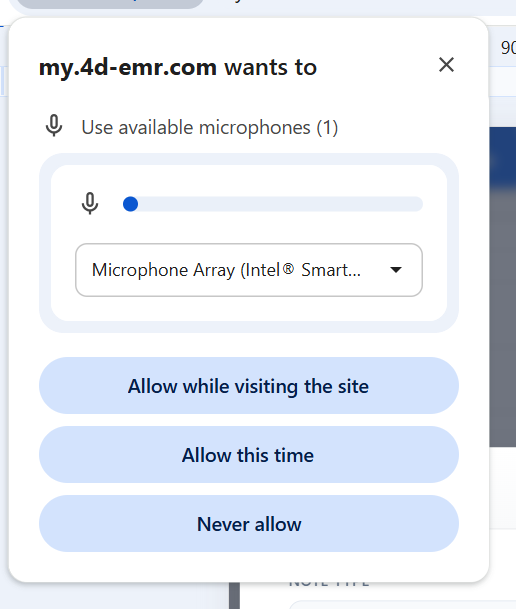
If you receive a message to confirm use of your microphone click yes (Allow while visiting this site)
Scribe will then start recording. You can pause and resume, or end and generate the note

Once the recording is ended you have the option to select to save the note as a draft rather than a final note

After the note is generated you can review and then finalize
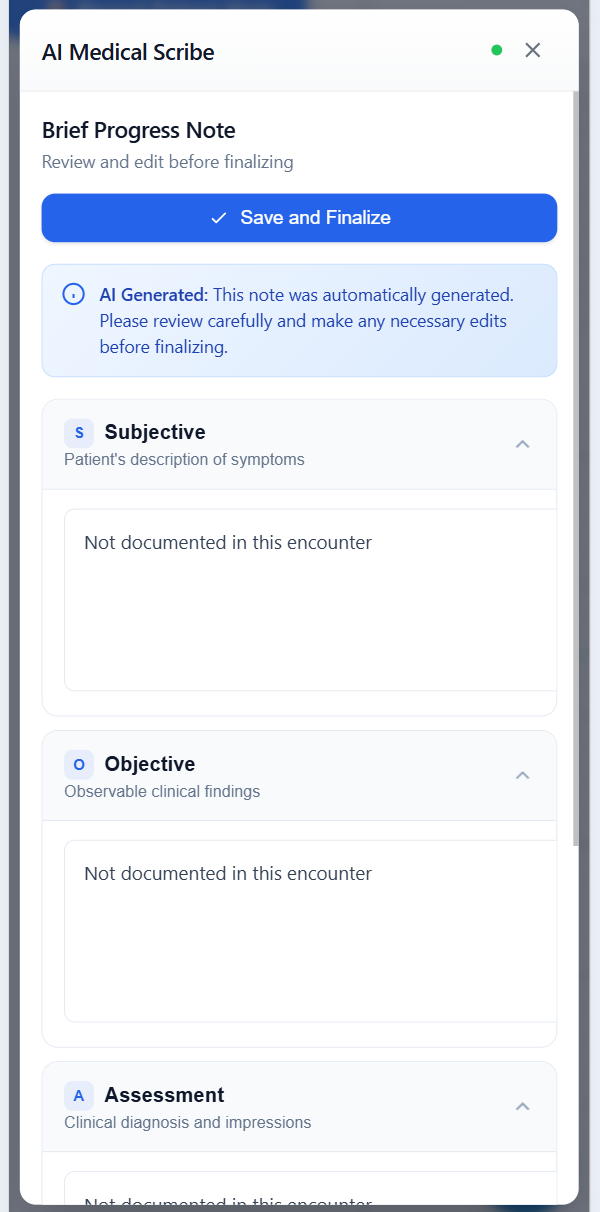
You can make changes here to the note or you can choose to finalize now and the note will be pushed to the patient chart note and signed. Just like any chart note, you are able to make edits to that chart note during the first hours after it is created without requiring an addendum.
END OF INSTRUCTIONS
If you've tried AI Scribe and want to activate it on your account, please reach out to our team via your normal support email, or call us at 844 878 2434, or fill out our contact form here.